Using Query String Parameters in a Page
As shown in earlier examples, the default page context—that is, the record that provides the source of data displayed on the page—is controlled by a query string parameter named id in the page URL. You can also get and set query string parameters in the Visualforce markup. The following topics provide examples:
- Getting Query String Parameters
- Setting Query String Parameters in Links
- Getting and Setting Query String Parameters on a Single Page
Getting Query String Parameters
You can reference query string parameters in Visualforce markup by using the $CurrentPage global variable. Using $CurrentPage, you can access the query string parameters for the page by specifying the parameters attribute, after which you can access each individual parameter:
$CurrentPage.parameters.***parameter_name***
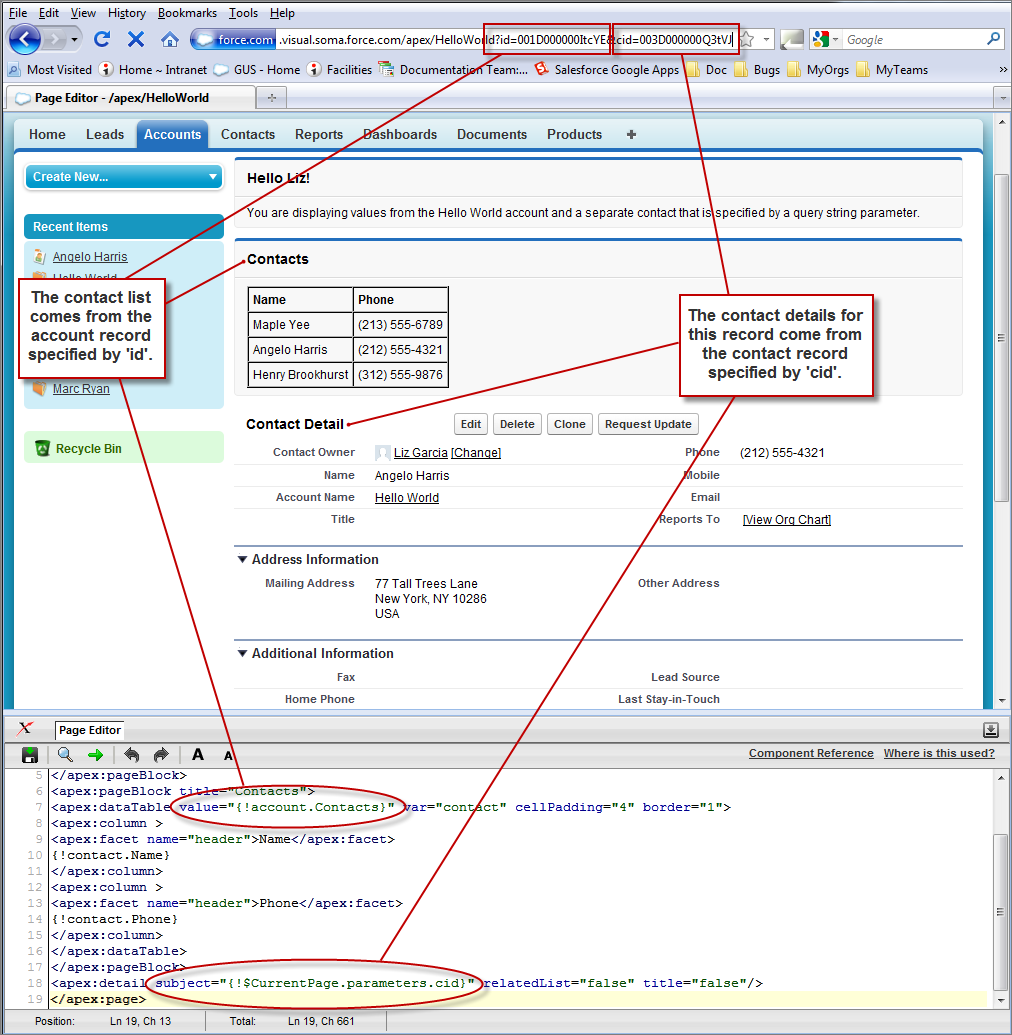
For example, suppose you want to add detail information about a specific contact
to an Account page. The account record ID is specified by the default id query string parameter, and the contact record ID is specified by the query string parameter named cid:
<apex:page standardController="Account"> <apex:pageBlock title="Hello {!$User.FirstName}!"> You are displaying values from the {!account.name} account and a separate contact that is specified by a query string parameter. </apex:pageBlock> <apex:pageBlock title="Contacts"> <apex:dataTable value="{!account.Contacts}" var="contact" cellPadding="4" border="1"> <apex:column> <apex:facet name="header">Name</apex:facet> {!contact.Name} </apex:column> <apex:column> <apex:facet name="header">Phone</apex:facet> {!contact.Phone} </apex:column> </apex:dataTable> </apex:pageBlock> <apex:detail subject="{!$CurrentPage.parameters.cid}" relatedList="false" title="false"/> </apex:page>For this example to render properly, you must associate the Visualforce page with valid accountand contact IDs in the URL.For example, if 001D000000IRt53 is the account ID and 003D000000Q0bIE is the contact ID, the resulting URL should be:Setting Query String Parameters in Links
You can set query string parameters in links to pages by constructing the link URL manually, or by using <apex:param> tags within the <apex:outputLink> tag. For example, both of the following examples create identical links to an external page:<apex:outputLink value="http://google.com/search?q={!account.name}"> Search Google </apex:outputLink><apex:outputLink value="http://google.com/search"> Search Google <apex:param name="q" value="{!account.name}"/> </apex:outputLink>The latter method, which uses <apex:param> tags instead of manually creating the URL, is preferable for stylistic reasons.Getting and Setting Query String Parameters on a Single Page
Having seen examples of both getting and setting query string parameters, this example shows how the two actions can be combined on a single page to produce a more interesting result. Based on the example from Getting Query String Parameters, the following page makes the name of each contact in the list a hyperlink that controls the context of the detail component below it.This is possible by:
- Wrapping the data table in an <apex:form> tag
- Turning each contact name into an <apex:commandLink> that sets the cid parameter appropriately with an <apex:param>tag
When used with a standard controller, command links always entirely refresh the current page with the new information added to the page—in this case, an updated cid that updates the contact detail component.<apex:page standardController="Account"> <apex:pageBlock title="Hello {!$User.FirstName}!"> You are displaying contacts from the {!account.name} account. Click a contact's name to view his or her details. </apex:pageBlock> <apex:pageBlock title="Contacts"> <apex:form> <apex:dataTable value="{!account.Contacts}" var="contact" cellPadding="4" border="1"> <apex:column> <apex:facet name="header">Name</apex:facet> <apex:commandLink> {!contact.Name} <apex:param name="cid" value="{!contact.id}"/> </apex:commandLink> </apex:column> <apex:column> <apex:facet name="header">Phone</apex:facet> {!contact.Phone} </apex:column> </apex:dataTable> </apex:form> </apex:pageBlock> <apex:detail subject="{!$CurrentPage.parameters.cid}" relatedList="false" title="false"/> </apex:page>After saving this markup, refresh your browser with the id query string parameter but without the cid parameter in the URL For example,https://***Salesforce_instance***/apex/MyFirstPage?id=001D000000IRt53


No comments:
Post a Comment