Adding Dependent Fields to a Page
Dependent fields provide a way to filter the field values displayed on a Visualforce page. Dependent fields consist of two parts: a controlling field that determines the filtering, and a dependent field that has its values filtered. Dependent fields can dynamically filter values in fields such as picklists, multi-select picklists, radio buttons, and checkboxes. Dependent picklists can only be displayed on Visualforce pages with Salesforce API version 19.0 or higher. For more information, see Dependent Picklists in the Salesforce online help.
For this example, we’ll be adding a dependent picklist, Subcategories, to a Visualforce page. First, create this custom picklist:
- From the object management settings for accounts, go to the fields area, and then click New.
- Choose Picklist, and then click Next.
- Enter Subcategories for the Field Label.
- Enter the following terms for the list of values:
- Apple Farms
- Cable
- Corn Fields
- Internet
- Radio
- Television
- Winery
- Click Next twice, then click Save.
- From the object management settings for accounts, go to the fields area.
- Click Field Dependencies.
- Click New.
- Choose Industry as a controlling field, and Subcategories as a dependent field.
- Click Continue.
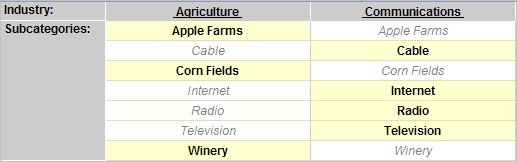
- Each value in the controlling field (from Industry) is listed in the top row and each value in the dependent field (from Subcategory) is displayed in the column below it. Set your field dependencies to match this image:The Field Dependency Matrix for SubcategoriesYou can disregard any other Industry types that aren’t shown above.
- Click Save.
Now, create a Visualforce page called dependentPicklists that looks like this:
<apex:page standardController="Account">
    <apex:form >
        <apex:pageBlock mode="edit">
            <apex:pageBlockButtons >
                <apex:commandButton action="{!save}" value="Save"/>
            </apex:pageBlockButtons>
            <apex:pageBlockSection title="Dependent Picklists" columns="2">
            <apex:inputField value="{!account.industry}"/>
            <apex:inputField value="{!account.subcategories__c}"/>
            </apex:pageBlockSection>
        </apex:pageBlock>
    </apex:form>
</apex:page>
Dependent Picklist Considerations
Consider the following when using dependent picklists in Visualforce pages:
- You can mix controlling and dependent fields across various field types, such as picklists, multi-picklists, radio buttons, and checkboxes.
- There’s a limit of 10 dependent picklist pairs per page. This is totalled across all objects. Thus, you could have five dependent picklists on Account, and five on Contact, but no more. However, you can repeat the same pair of dependent picklists, such as in an iterative tag like <apex:repeat>, without counting more than once against your limit.
- If the user viewing the page has read-only access to the controlling field, a dependent picklist might not behave as expected. In this case, the dependent picklist shows all possible values for the picklist, instead of being filtered on the read-only value. This is a known limitation in Visualforce.
<apex:page standardController="Account"> <apex:form> <!-- Don't mix a standard input field... --> <apex:inputField value="{!account.Controlling__c}"/> <apex:outputField value="{!account.Dependent__c}"> <!-- ...with an inline-edit enabled dependent field --> <apex:inlineEditSupport event="ondblClick" /> </apex:outputField> </apex:form> </apex:page>
If you combine inline edit-enabled dependent picklists with Ajax-style partial
page refreshes, refresh all fields with dependent or controlling relationships
to each other as one group. Refreshing fields individually isn’t recommended and
might result in inconsistent undo/redo behavior. Here’s an example of the
recommended way to partially refresh a form with inline edit-enabled dependent
picklists:
<apex:form> <!-- other form elements ... --> <apex:outputPanel id="locationPicker"> <apex:outputField value="{!Location.country}"> <apex:inlineEditSupport event="ondblClick" /> </apex:outputField> <apex:outputField value="{!Location.state}"> <apex:inlineEditSupport event="ondblClick" /> </apex:outputField> <apex:outputField value="{!Location.city}"> <apex:inlineEditSupport event="ondblClick" /> </apex:outputField> </apex:outputPanel> <!-- ... --> <apex:commandButton value="Refresh Picklists" reRender="locationPicker" /> </apex:form>All of the inline edit-enabled picklists are wrapped in the <apex:outputPanel> component. The <apex:outputPanel>rerenders when the <apex:commandButton> action method fires.

No comments:
Post a Comment