Tuesday, 20 March 2018

Using Input Components in a Page

Using Input Components in a Page

So far the examples in this quick start tutorial show ways that you can display data in a Visualforce page. To capture input from a user, use the <apex:form> tag with one or more input components and a <apex:commandLink> or <apex:commandButton> tag to submit the form.
The input component tag that is most often used in a form is <apex:inputField>. This tag renders the appropriate input widget based on a standard or custom object field’s type. For example, if you use an <apex:inputField> tag to display a date field, a calendar widget displays on the form. If you use an <apex:inputField> tag to display a picklist field, a drop-down list displays instead. The <apex:inputField> tag can be used to capture user input for any standard or custom object field, and respects any metadata that is set on the field definition, such as whether the field is required or unique, or whether the current user has permission to view or edit it.
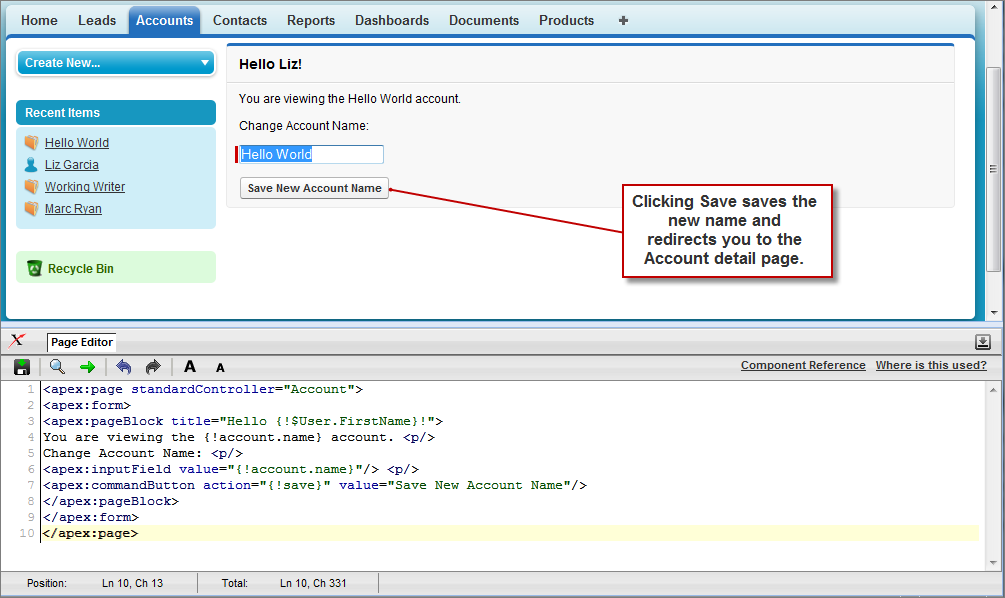
For example, the following page allows users to edit and save the name of an account:

Note
Remember, for this page to display account data, the ID of a valid account record must be specified as a query parameter in the URL for the page. For example:

https://***Salesforce_instance***/apex/myPage?id=001x000xxx3Jsxb

<apex:page standardController="Account">
    <apex:form> 
        <apex:pageBlock title="Hello {!$User.FirstName}!">
            You are viewing the {!account.name} account. <p/>
            Change Account Name: <p/> 
            <apex:inputField value="{!account.name}"/> <p/>
            <apex:commandButton action="{!save}" value="Save New Account Name"/> 
        </apex:pageBlock>
    </apex:form> 
</apex:page>

Notice in the example that:
  • The <apex:inputField> tag is bound to the account name field by setting the tag’s value attribute. The expression contains the familiar {!account.name} dot-notation used to display the field’s value elsewhere in the page.
  • The <apex:commandButton> tag has an action attribute. The value for this attribute invokes the save action of the standard Account controller, which performs identically to the Save button on the standard Account edit page.
Note
When you save a page, the value attribute of all input components—<apex:inputField><apex:inputText>, and so on—is validated to ensure it’s a single expression, with no literal text or white space, and is a valid reference to a single controller method or object property. An error will prevent saving the page.
The <apex:form> Component with a Single Input FieldThe Apex Page Editor, displaying apex:form in the code window and a single input field in the page view
The only fields that the <apex:inputField> tag cannot display are those defined as member variables of a custom controller class written in Apex. To gather data for these variables, use the <apex:inputCheckbox><apex:inputHidden><apex:inputSecret><apex:inputText>, or <apex:inputTextarea> tags instead.

No comments:

Post a Comment