Converting a Page to a PDF File
You can render any page as a PDF by adding the renderAs attribute to the <apex:page> component, and specifying “pdf” as the rendering service. For example:
<apex:page renderAs="pdf">
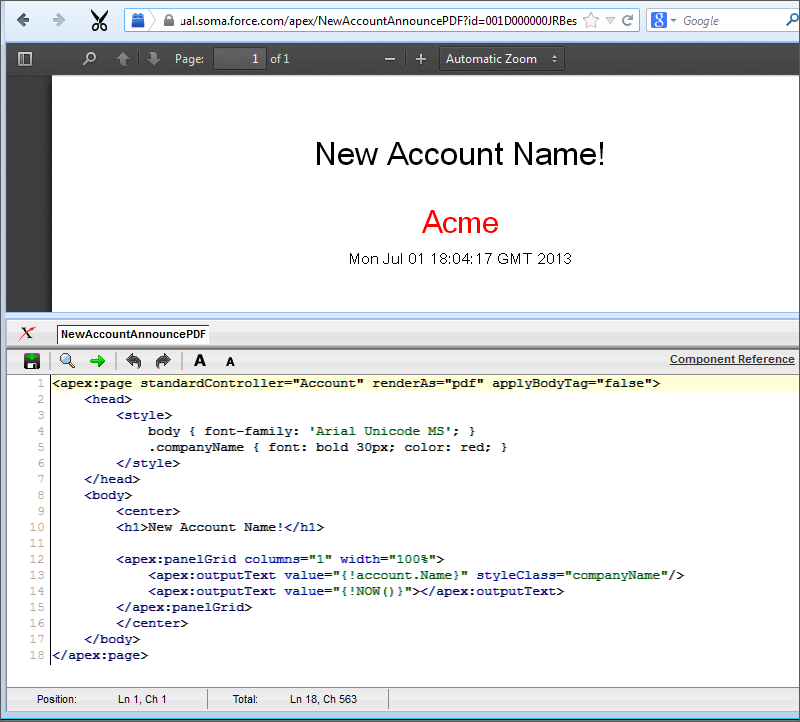
Visualforce pages rendered as PDFs will either display in the browser or download as a PDF file, depending on your browser settings.In the previous tutorial, you used a Visualforce page to change the name of a company. Suppose you wanted to generate an announcement of the new name as a PDF. The following example produces such a page, along with the current date and time.<apex:page standardController="Account" renderAs="pdf" applyBodyTag="false"> <head> <style> body { font-family: 'Arial Unicode MS'; } .companyName { font: bold 30px; color: red; } </style> </head> <body> <center> <h1>New Account Name!</h1> <apex:panelGrid columns="1" width="100%"> <apex:outputText value="{!account.Name}" styleClass="companyName"/> <apex:outputText value="{!NOW()}"></apex:outputText> </apex:panelGrid> </center> </body> </apex:page>Things to note about the page:
- <style> is CSS markup, not Visualforce markup. It defines the font family used for the entire page, as well as a particular style for the company name.
- Some of the output text is contained in an <apex:panelGrid> component. A panel grid renders as an HTML table. Each component found in the body of the <apex:panelGrid> component is placed into a corresponding cell in the first row until the number of columns is reached. As there is only a single cell, each output text is displayed in a separate row.
A Visualforce Page Rendered as PDFAlways verify the format of your rendered page before deploying it.

No comments:
Post a Comment